4. Loading Airfoils
Loading airfoils can be done in different ways.
4.1. Load via menu Open
The menu is the standard way to load airfoil contour data. The shortcut assigned to this menu is CTRL-o. When clicking this menu or applying the respective shortcut, a file dialog pops up. It allows to select files or browse directories.

Open menu to load an airfoil contour via the file browser
4.2. Load via the inline file browser
As outlined above there are more ways to load airfoils. A very handy way to browse airfoils is to use the
implemented file browser. This browser is restricted in terms of navigation. Only files and folders below a
predefined root path are visible. The default root is the data/Airfoils subfolder from the
standard installation. The root path for airfoils can be changed by the user in the file src/Settings.py
by changing the value of the variable AIRFOILDATA.
The file browser is located in the toolbox on the left side of the application. It is the uppermost tab in the toolbox area.
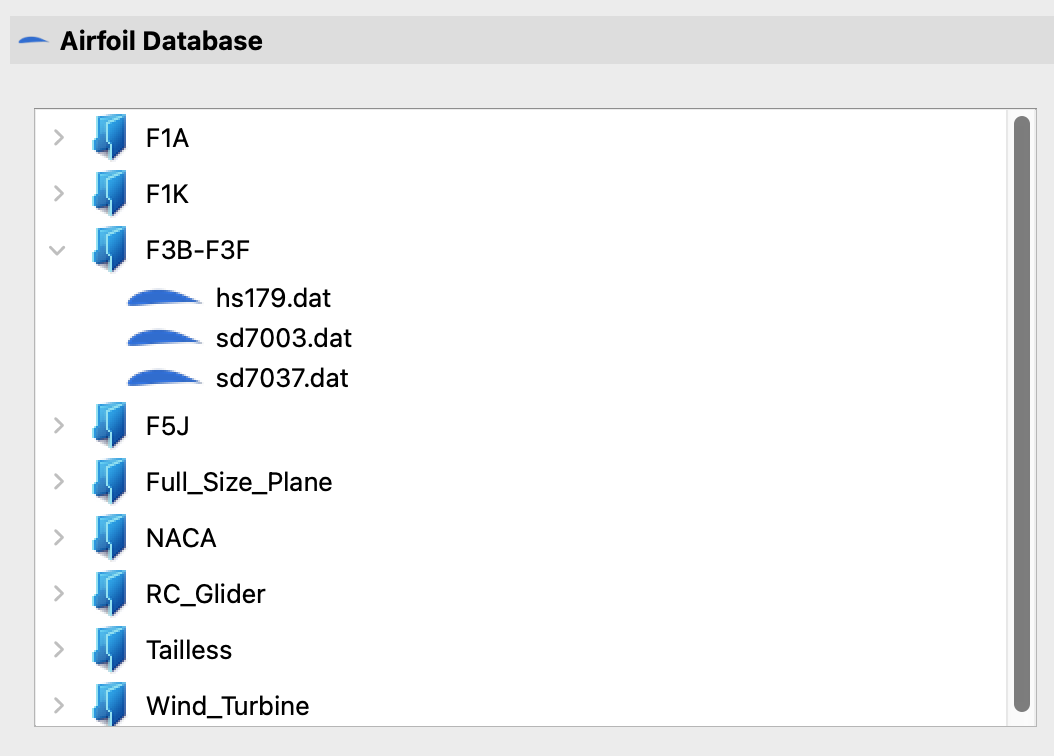
File browser integrated in the Toolbox.
See also
For more information on configuring the root path to airfoil data see Settings.
4.3. Load via the Toolbar
Another way to open the file dialog is to click on the icon in the toolbar.
The toolbar consists of a row of icons just below the menu bar. The toolbar and its icons can be customized by
editing the file data/PToolBar.xml.
Toolbar icon to load an airfoil contour via the file browser
See also
For more information on configuring the menubar and the toolbar see Settings.
4.4. Load a predefined airfoil
For testing purposes a predefined airfoil can be loaded without the need of a file dialog. The airfoil which is predefined can be configured.
Toolbar icon to load a predefined airfoil contour
See also
See tutorial Settings on how to change the default airfoil.
4.5. Load via drag and drop
Last but not least, one or more airfoil(s) can be loaded via drag and drop. Just drag a couple of files, e.g. from the Explorer (Windows) or Finder (MacOS), to the graphics window. All files will be loaded, but only one file will be displayed. All the other files are shown (and can be activated by double-clicking on the name) in the toolbox area.
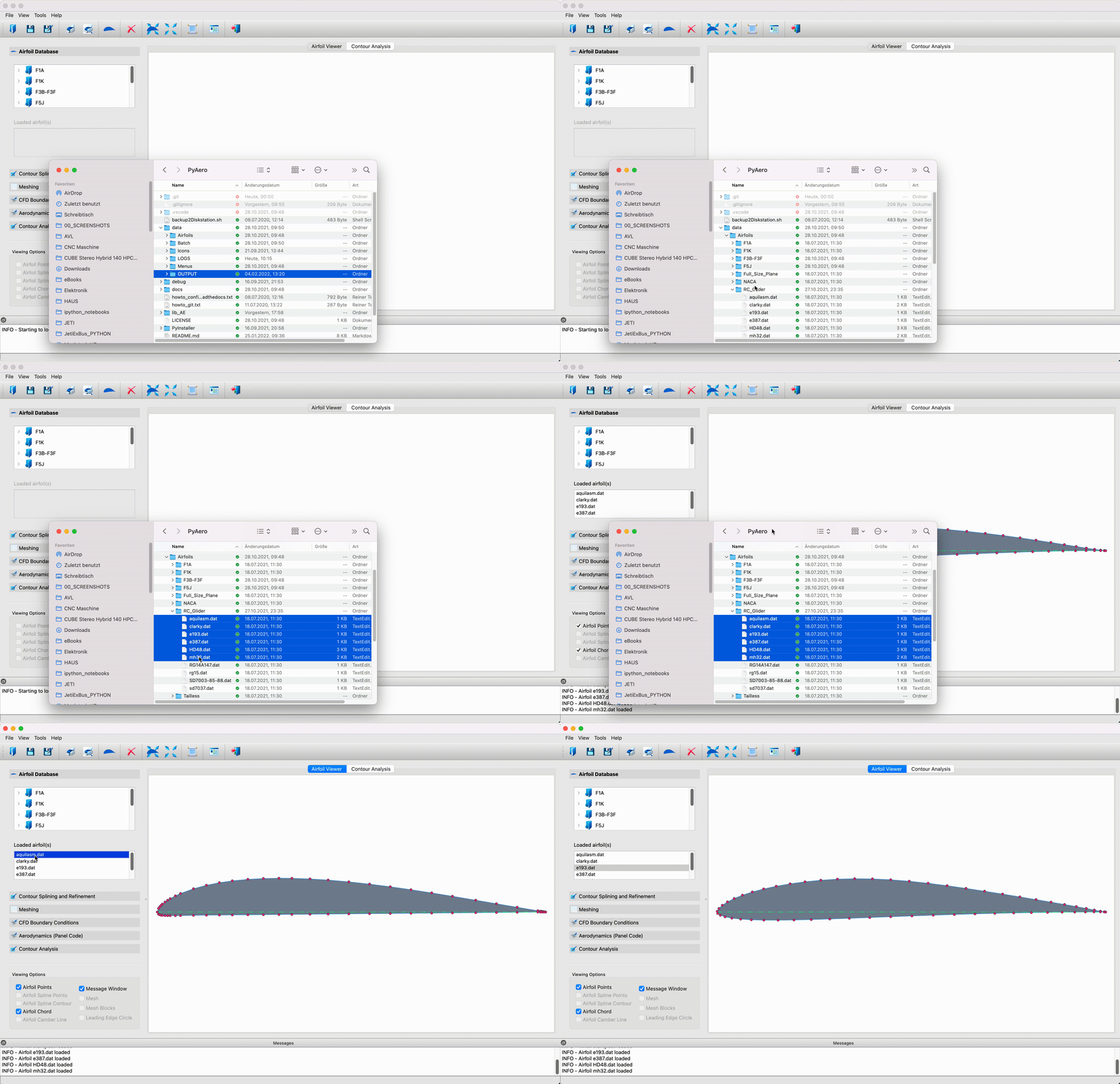
Load multiple contours via drag and drop