12. User Interface
PyAero uses a workflow-oriented desktop interface built with Qt for Python. The current layout is designed to keep the main meshing path visible at all times while still exposing the analysis and helper tools around it.
13. Overview
The window is organized into two main areas:
a workflow sidebar on the left
a workspace on the right
The workflow sidebar contains the active airfoil summary, the page navigation, and the currently selected tool page. The workspace contains the geometry view, the contour analysis tab, the message panel, and the viewer controls.
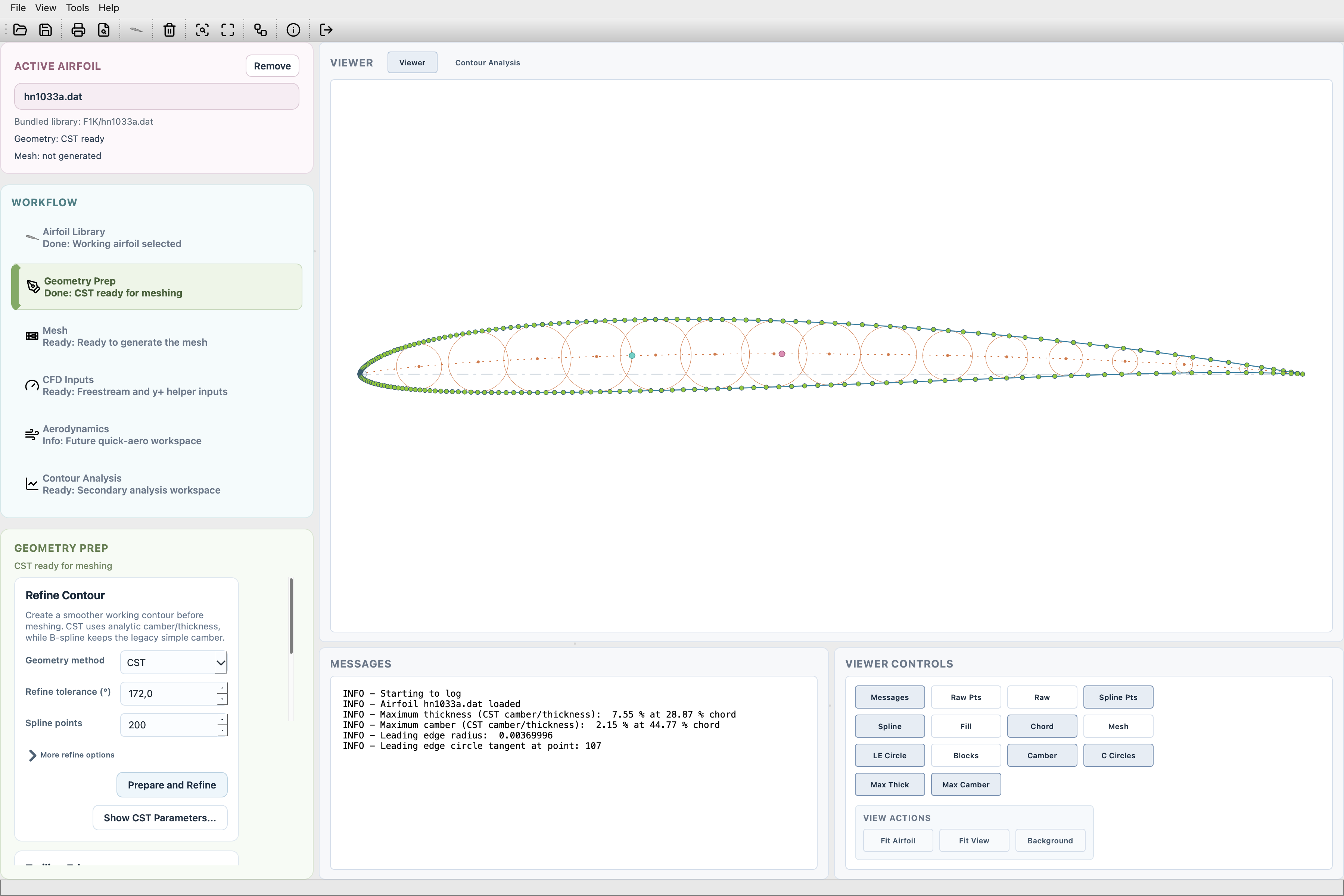
PyAero main window with the workflow shell.
14. Workflow Pages
The left-hand workflow sidebar is split into dedicated pages:
Airfoil Library
Geometry Prep
Mesh
CFD Inputs
Aerodynamics
Contour Analysis
The active airfoil summary at the top of the sidebar shows:
the loaded airfoil name
where it came from
whether prepared geometry is available
whether a mesh has already been generated
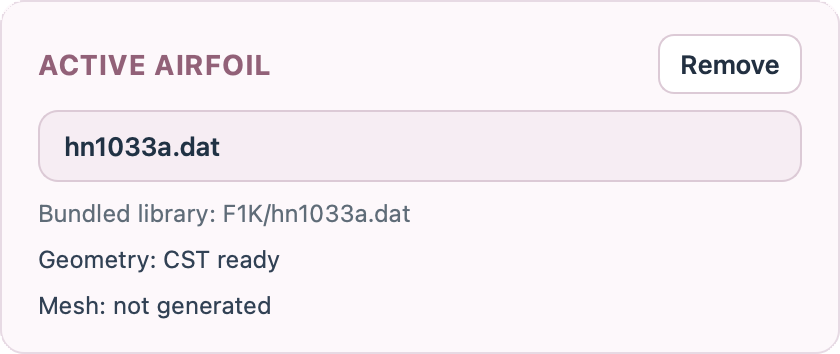
Active airfoil summary card at the top of the workflow sidebar.
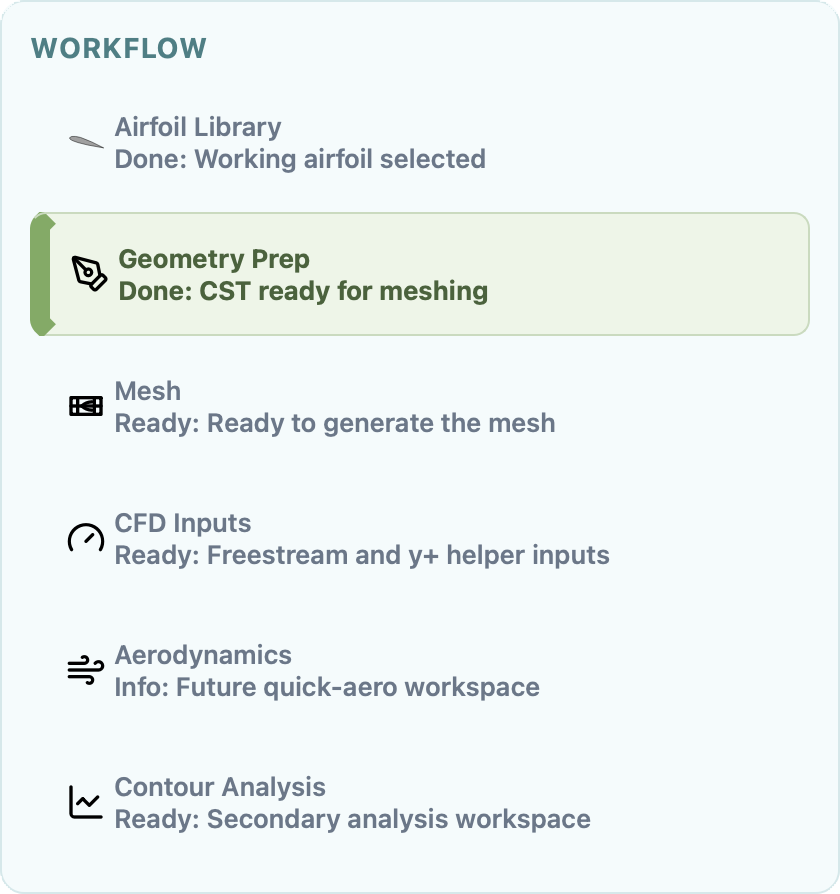
Workflow navigation card for switching between the main tool pages.
15. Menus and Toolbar
Menus and toolbar buttons are registry-driven. Actions, tooltips, shortcuts, and icons are defined centrally, while the menu and toolbar layouts are assembled from bundled configuration data.
This keeps the interface consistent:
menus and toolbar buttons trigger the same action definitions
the shortcut editor works against the same registry
adding a new action does not require duplicating logic in several places
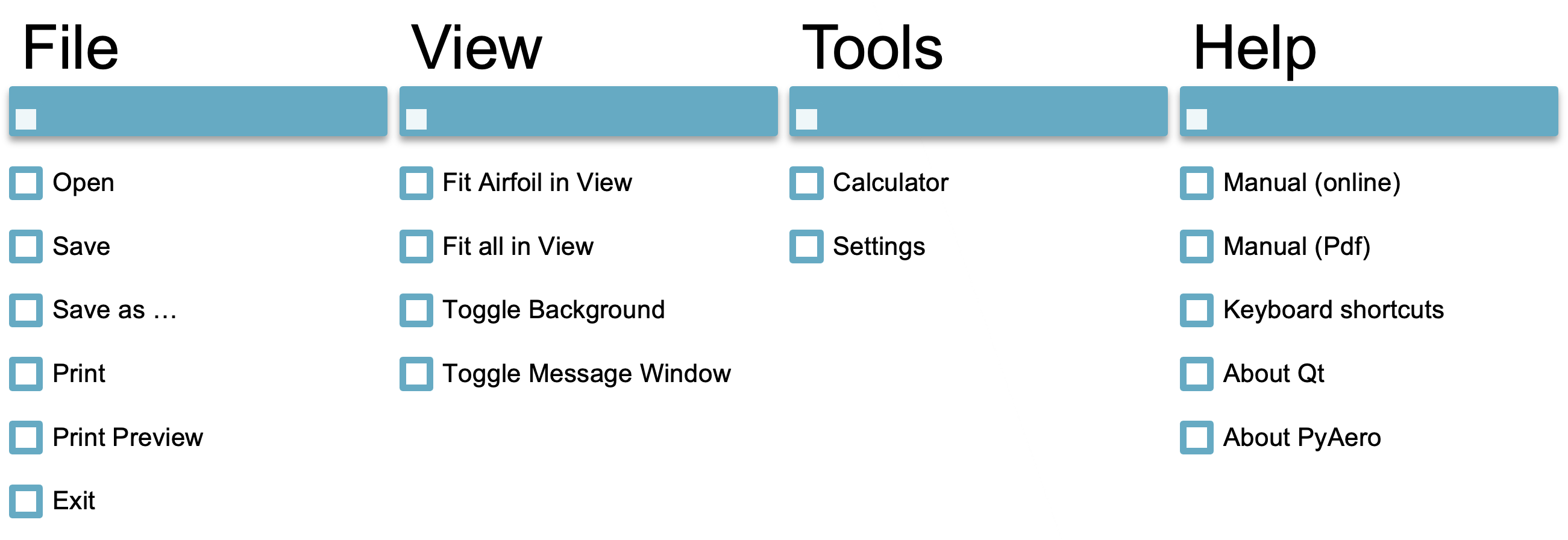
Menu structure overview.
The View menu also contains a Window Size submenu for cycling or applying three configured screenshot-friendly window presets. For docs work, Tools > Export UI now groups direct PNG exports for the rounded sidebar cards, the utility panels, and the current canvas, and it also offers a one-shot complete export into a folder. Major dialogs also expose their own Export PNG… button so they can be captured cleanly without manual cropping. The canvas screenshot action ships with the default shortcut Ctrl+Alt+S.

Toolbar overview.
16. Tool Pages
Most day-to-day work happens inside the workflow pages rather than through modal dialogs. In practice this means:
airfoil selection happens in the library page
contour preparation happens in the geometry page
mesh creation and export happen in the mesh page
CFD helper calculations happen in dedicated side pages
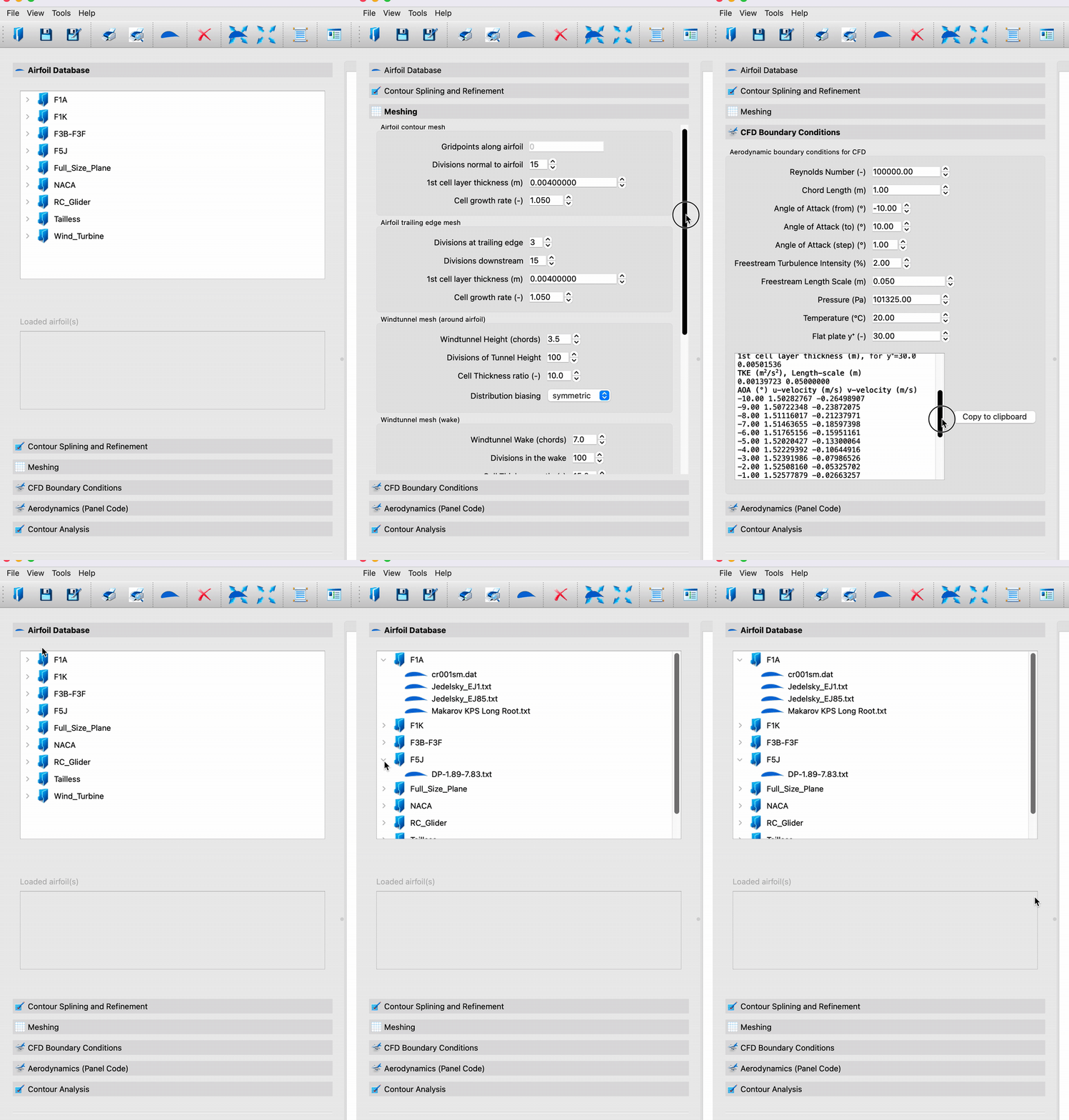
Overview of the page-based workflow controls.
17. Workspace Tabs
The right-hand workspace contains:
the main graphics viewer
the contour analysis view
The graphics viewer is the main place for loading, inspecting, and reviewing the contour and generated mesh. The contour analysis tab shows the derived plots for gradient, curvature, and radius.
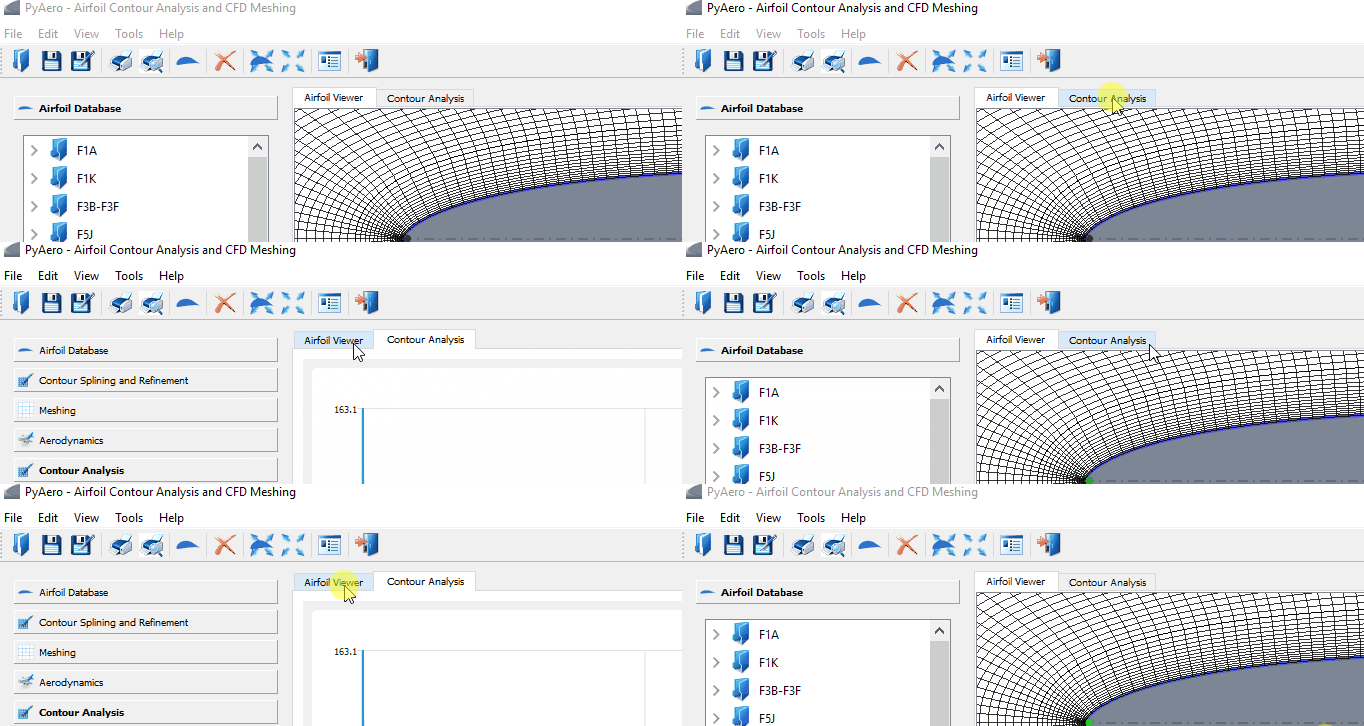
Switching between the graphics and analysis views.
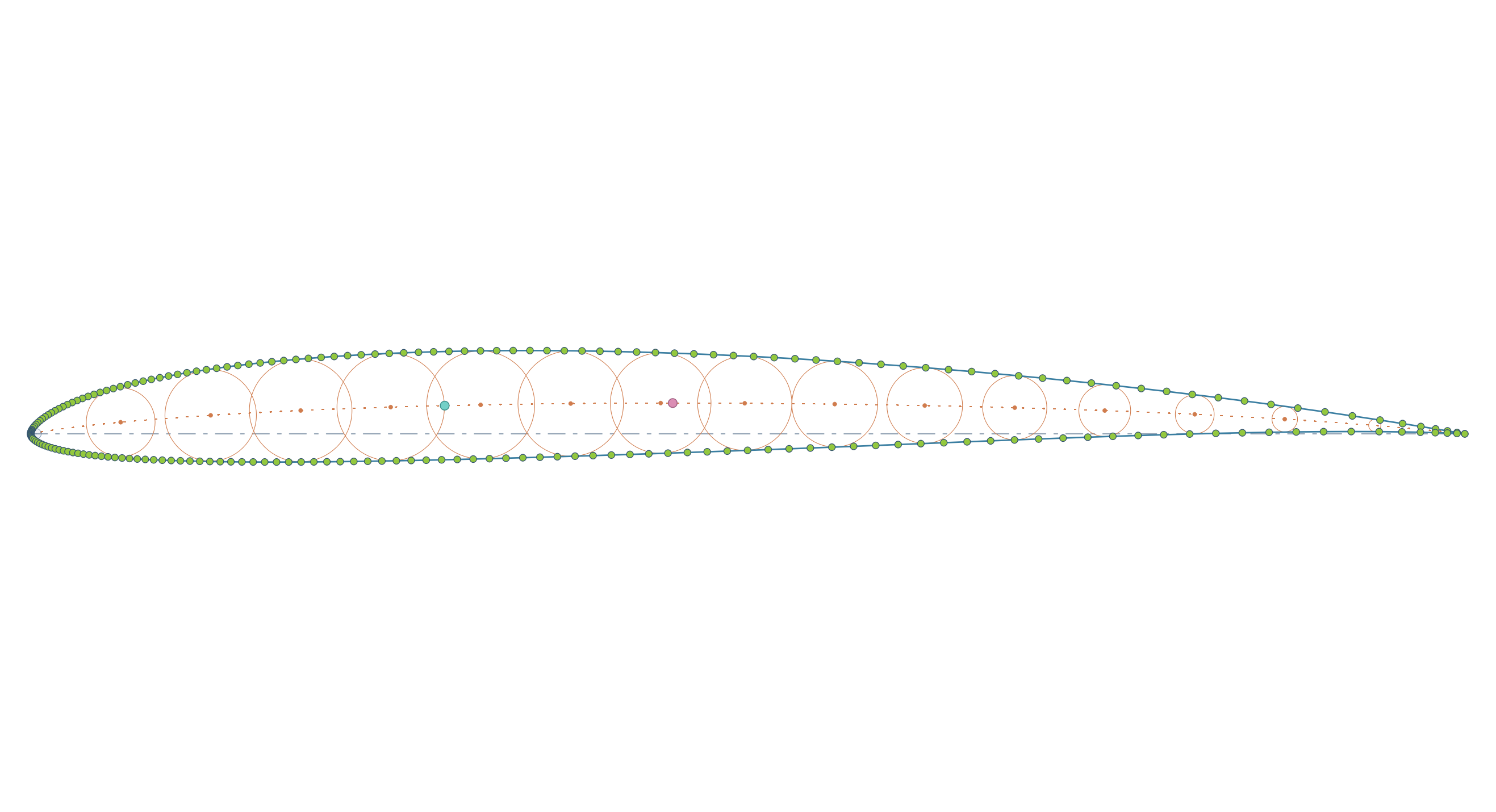
Main graphics viewer canvas used for contour and mesh inspection.
18. Workspace Panels
Two utility panels sit close to the main canvas so the workflow stays visible while you work:
the viewer controls panel
the message panel
The viewer controls panel groups fit actions, background switching, message visibility, and quick access to magnifier-related tools. The message panel shows load status, export summaries, warnings, and other workflow feedback without forcing a modal dialog.
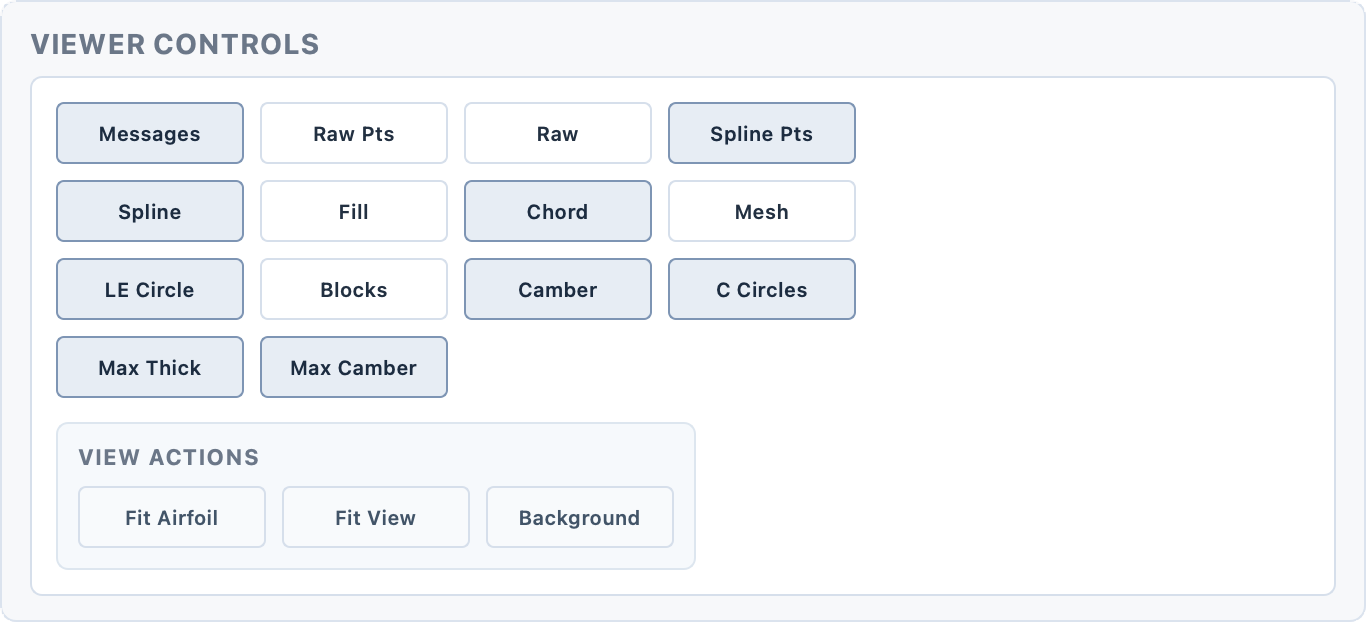
Viewer controls for fit commands, background toggle, message visibility, and magnifier access.
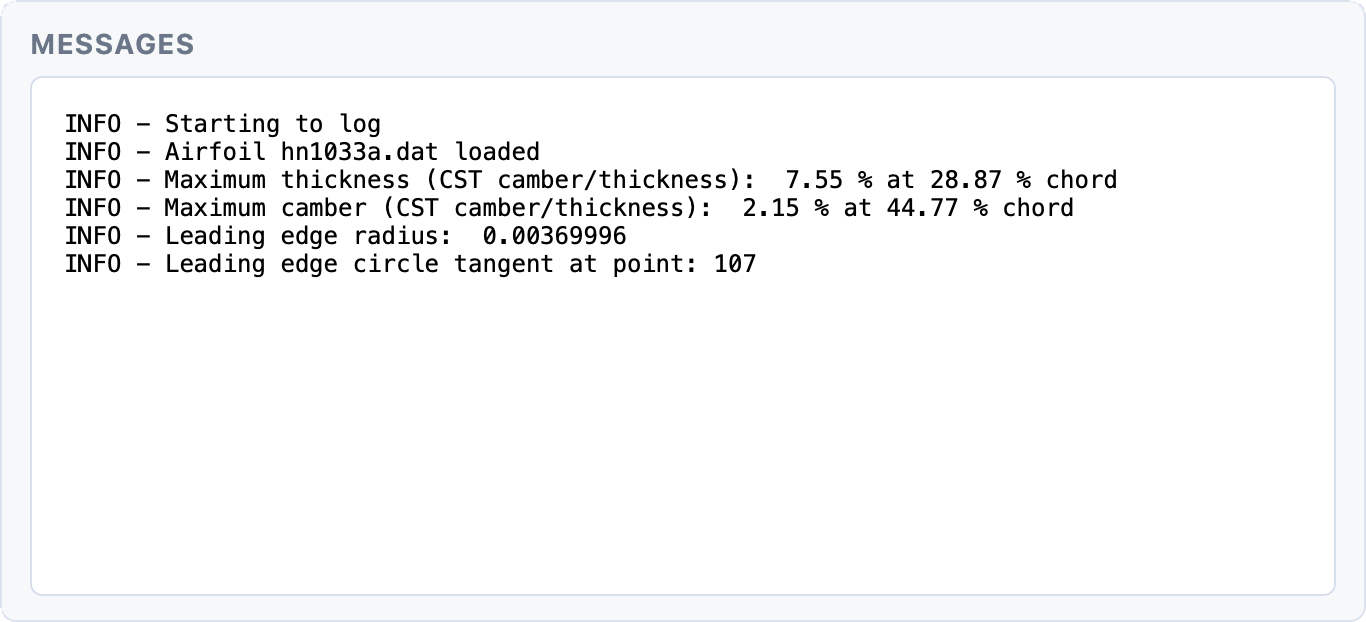
Integrated message panel for status, warnings, and export feedback.
19. Navigation
19.1. Panning
Press and hold CTRL on Windows or Linux, or CMD on macOS, then drag with the left mouse button to pan the scene.
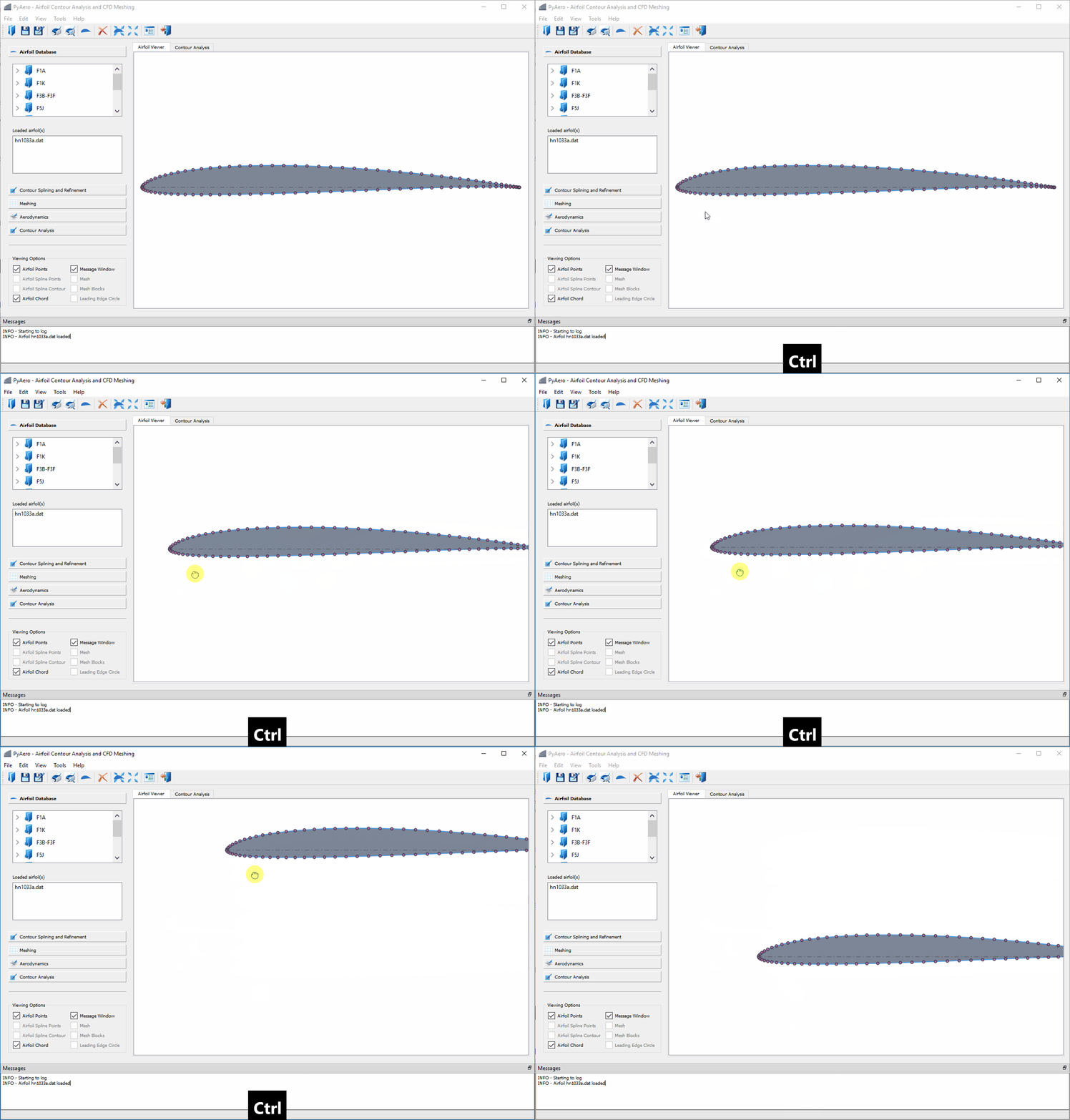
Panning the scene.
19.2. Zooming
You can zoom in three ways:
draw a rubber-band rectangle with the left mouse button
use the mouse wheel
use the keyboard shortcuts for zooming
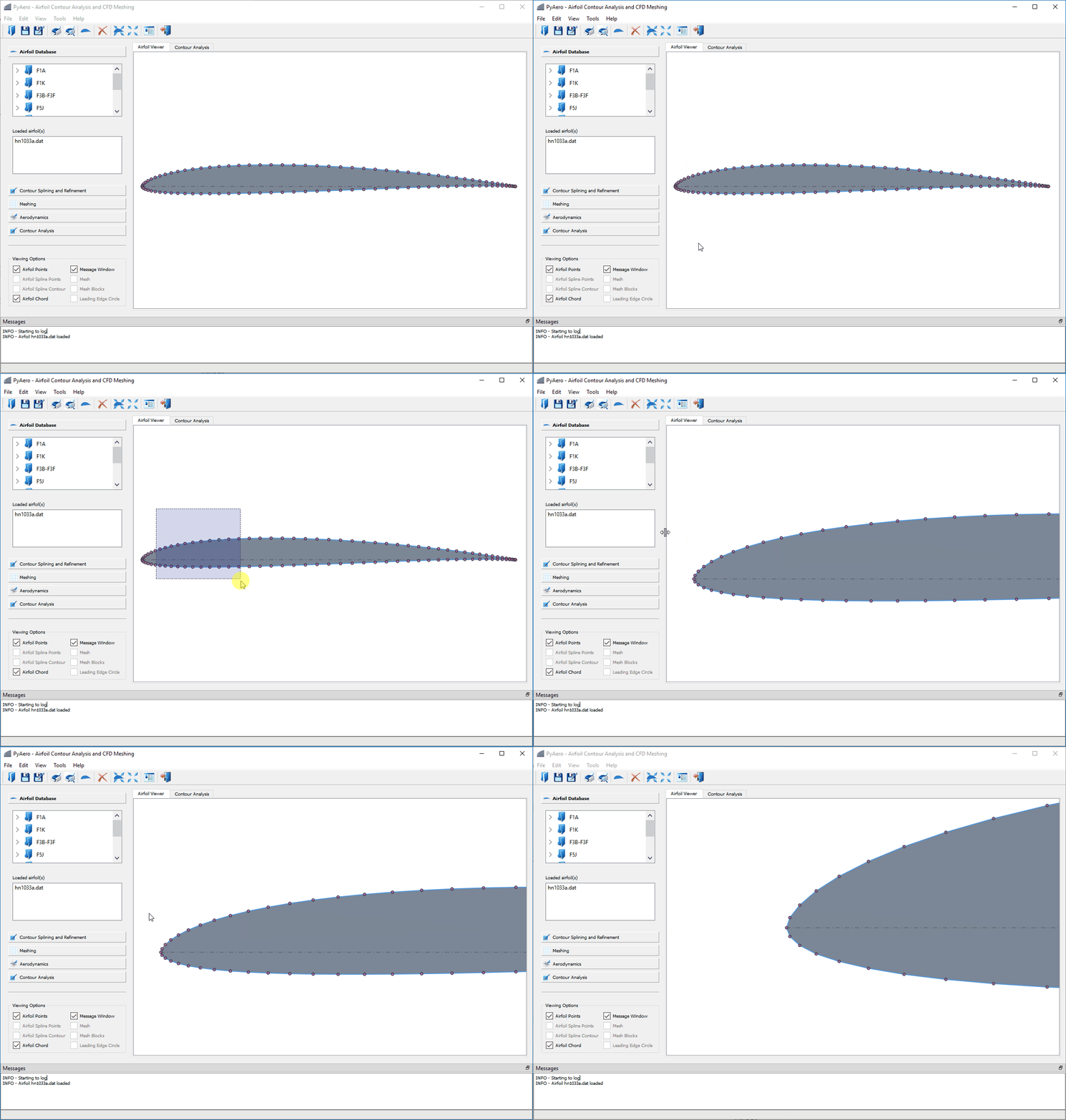
Rubber-band zoom in the graphics view.
19.3. Magnifier
The graphics viewer also includes a hover magnifier for close inspection without changing the main zoom level. You can enable it from , from the graphics-view context menu, or with the default shortcut Ctrl+Alt+M.
While the magnifier is active:
moving the pointer repositions the lens
the mouse wheel changes the lens magnification
+and-adjust magnifier zoom from the keyboardCtrl++andCtrl+-increase or decrease the lens sizethe regular fit, zoom, background, and delete actions are temporarily disabled so the lens interaction stays focused
The default lens size and magnification are configurable through Settings.
20. Keyboard Shortcuts
Keyboard shortcuts are managed centrally. Built-in defaults live in resources/Shortcuts/shortcuts.json, and user overrides are stored in config/shortcuts_user.json.
The shortcut editor is available from the help menu and by default opens with:
Ctrl+K on Windows and Linux
Cmd+K on macOS when mapped through Qt’s platform conventions
The editor allows you to:
inspect the current shortcut map
compare built-in and overridden bindings
save one platform-specific override per action
The actual text rendered by Qt may vary slightly across operating systems.
21. Support Dialogs
Several utility dialogs support the main workflow and the surrounding UI maintenance tasks:
Settings opens the editable runtime configuration
Icon Preview shows semantic icons and bundled app assets
About PyAero summarizes version, license, and environment details
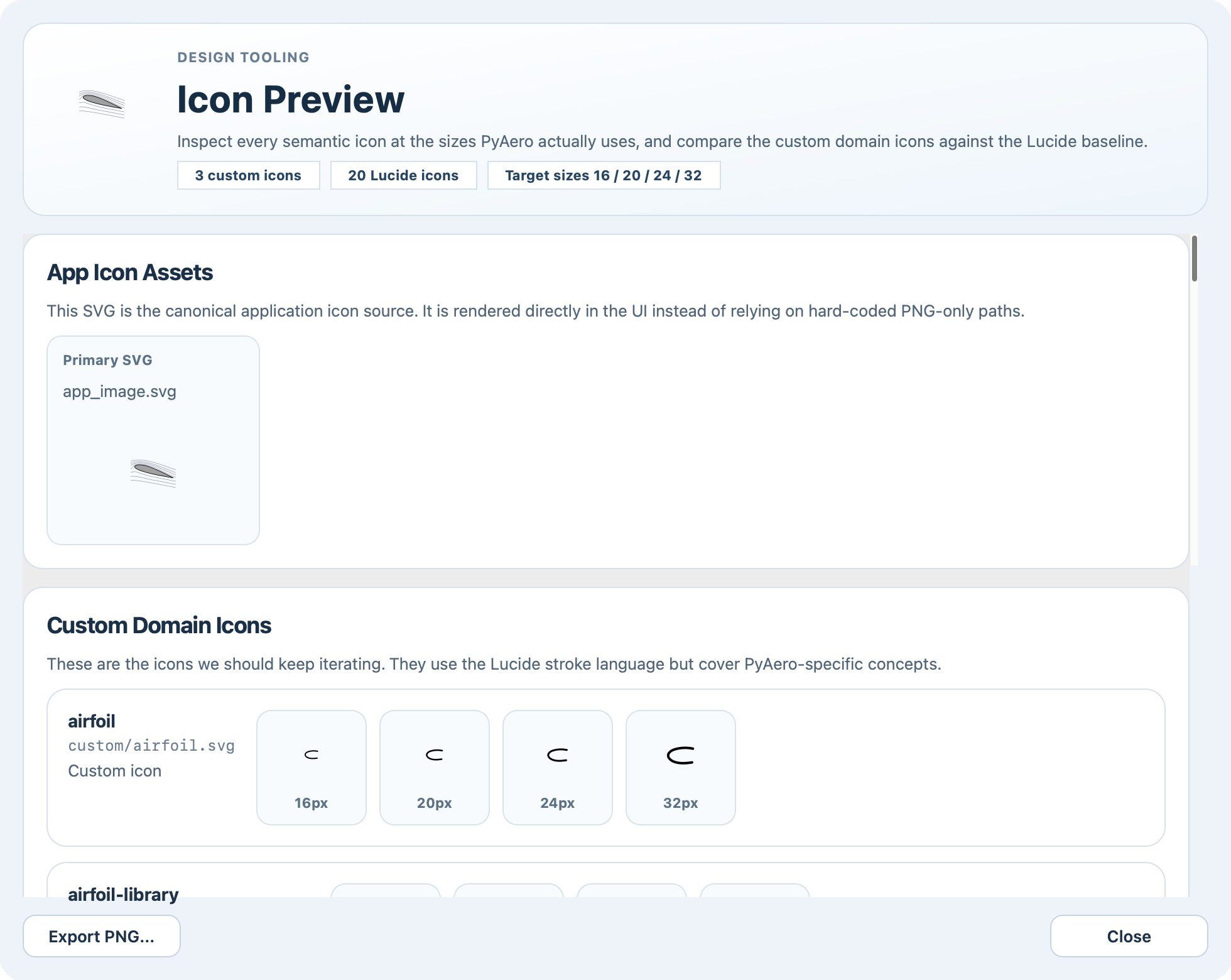
Icon preview dialog for checking semantic icons and bundled assets.
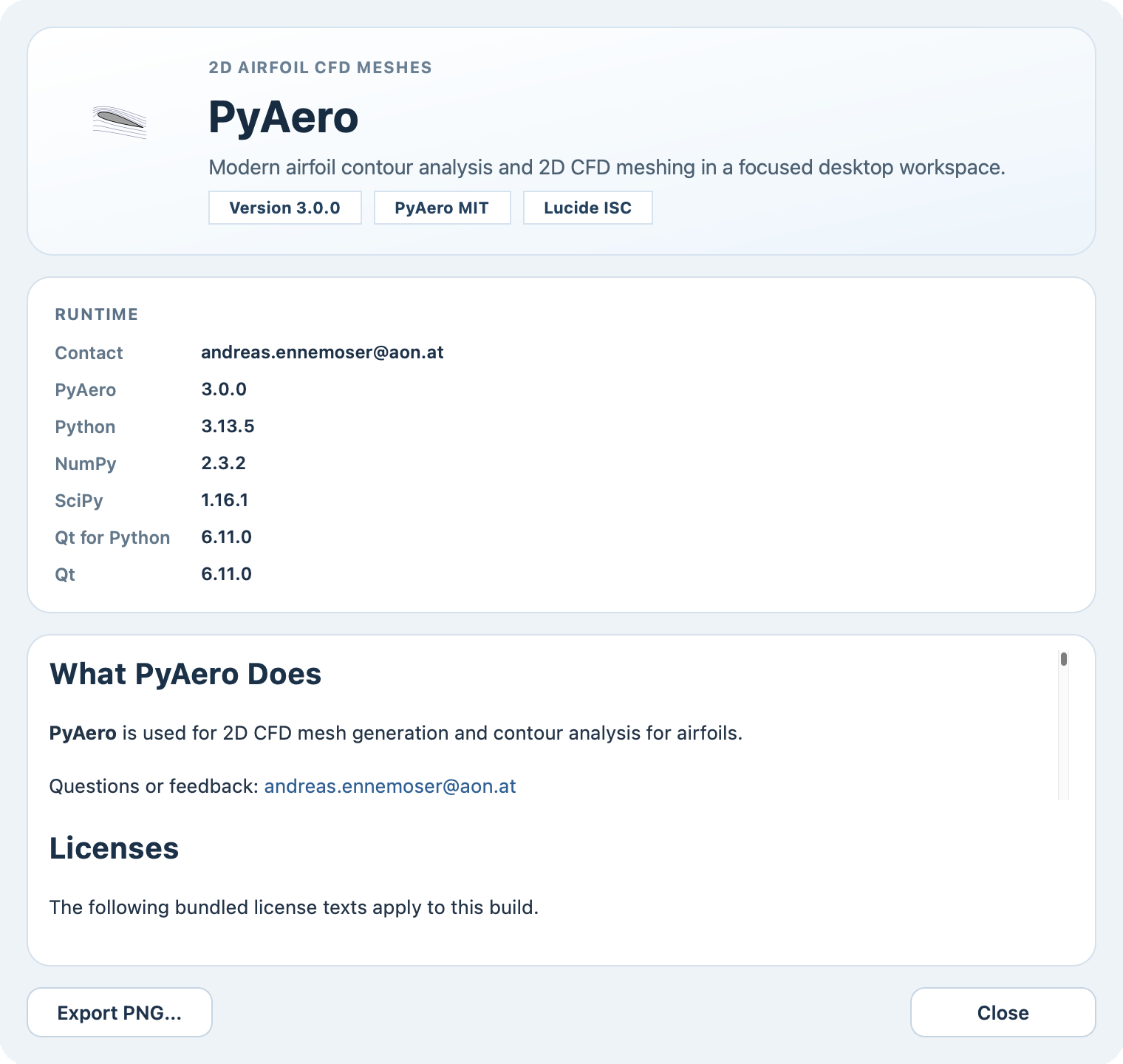
About dialog with project, license, and environment information.